

How to Get Spotify w/o Ads Using Spicetify Method (As of 2026 w/ Windows/Mac/Linux)

holy

holy

Joined
Nov 5, 2024
Posts
1,257
Reputation
2,093
Even though account bans are rare using this, they are still possible. Use at your own risk.

This uses the Marketplace for the easiest install. Basically, Spicetify patches the client to inject extensions that remove audio ads, banner ads, upsell popups, and forced shuffle/repeat. It’s reliable right now, but Spotify patches sometimes break it.

The simple mitigation strategy for this is to reapply after big updates.

Step 1:
1.1. Install the official Spotify desktop app if you don’t have it (https://www.spotify.com/de-en/download/windows/).

1.2. Log in once, play something, then close it completely (check task manager/kill processes).

Step 2:
Install Spicetify CLI (command-line tool):

- Go to https://spicetify.app/
Windows (PowerShell as admin)
Paste and run:
iwr -useb https://raw.githubusercontent.com/spicetify/cli/main/install.ps1 | iex
Mac/Linux (terminal):
Paste and run:
curl -fsSL https://raw.githubusercontent.com/spicetify/cli/main/install.sh | sh

It’ll create config folders and backup your Spotify files.

Step 3:
After running the cmd, when it asks you:
"Do you also want to install Spicetify Marketplace? ..."

Just answer with "Y".

The Spicetify marketplace basically adds a sidebar tab in Spotify for browsing/installing shit easily.

Step 4:
Open the Spotify desktop app now. You’ll see a new Marketplace tab/icon in the left sidebar (shopping cart or puzzle piece, might need a restart).
1774031188657


Step 5:
In Marketplace:

5.1. Go to Extensions tab.

1774031289893


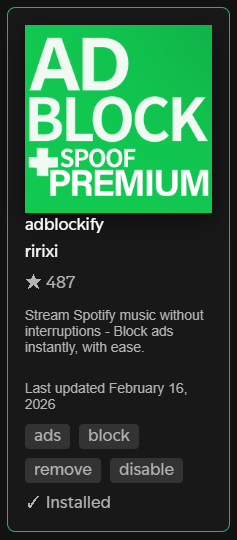
5.2. Search "adblock" or "adblockify" (popular ones: Adblockify by rxri or similar forks. Rxri's is solid in 2026 per recent commits)
1774031366001


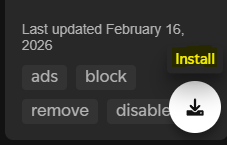
5.3. Click Install.
1774031558219


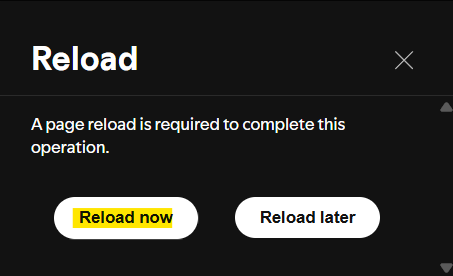
5.4. Once installed, hit Reload (or run spicetify apply in terminal if it doesn’t auto-reload).
1774031600357


Method 1:
Run:
spicetify update,

then

spicetify apply

Method 2:
Reinstall the extension.
Run

spicetify config current_theme " ",

then

spicetify apply.
3.1. Grab adblock.js from https://github.com/rxri/spicetify-extensions/tree/main/adblock
3.2. Drop into Extensions folder (%appdata%\spicetify\Extensions on Win, ~/.config/spicetify/Extensions on others),
3.3. Then run the cmds:

config extensions adblock.js

+

spicetify apply

Spotify could detect/block this eventually (rare for Spicetify), but as of now it flies under radar since it’s client-side modding.
 
  • +1
Reactions: Glorious King, Divineincel and Psocho
Bump!
 
  • +1
Reactions: Glorious King
Even though account bans are rare using this, they are still possible. Use at your own risk.

This uses the Marketplace for the easiest install. Basically, Spicetify patches the client to inject extensions that remove audio ads, banner ads, upsell popups, and forced shuffle/repeat. It’s reliable right now, but Spotify patches sometimes break it.

The simple mitigation strategy for this is to reapply after big updates.

Step 1:
1.1. Install the official Spotify desktop app if you don’t have it (https://www.spotify.com/de-en/download/windows/).

1.2. Log in once, play something, then close it completely (check task manager/kill processes).

Step 2:
Install Spicetify CLI (command-line tool):

- Go to https://spicetify.app/

Windows (PowerShell as admin)
Paste and run:
iwr -useb https://raw.githubusercontent.com/spicetify/cli/main/install.ps1 | iex
Mac/Linux (terminal):
Paste and run:
curl -fsSL https://raw.githubusercontent.com/spicetify/cli/main/install.sh | sh

It’ll create config folders and backup your Spotify files.

Step 3:
After running the cmd, when it asks you:


Just answer with "Y".

The Spicetify marketplace basically adds a sidebar tab in Spotify for browsing/installing shit easily.

Step 4:
Open the Spotify desktop app now. You’ll see a new Marketplace tab/icon in the left sidebar (shopping cart or puzzle piece, might need a restart).
View attachment 4792289

Step 5:
In Marketplace:

5.1. Go to Extensions tab.
View attachment 4792296

5.2. Search "adblock" or "adblockify" (popular ones: Adblockify by rxri or similar forks. Rxri's is solid in 2026 per recent commits)
View attachment 4792297

5.3. Click Install.
View attachment 4792301

5.4. Once installed, hit Reload (or run spicetify apply in terminal if it doesn’t auto-reload).
View attachment 4792304

Method 1:
Run:
spicetify update,

then

spicetify apply

Method 2:
Reinstall the extension.
Run

spicetify config current_theme " ",

then

spicetify apply.
3.1. Grab adblock.js from https://github.com/rxri/spicetify-extensions/tree/main/adblock
3.2. Drop into Extensions folder (%appdata%\spicetify\Extensions on Win, ~/.config/spicetify/Extensions on others),
3.3. Then run the cmds:

config extensions adblock.js

+

spicetify apply

Spotify could detect/block this eventually (rare for Spicetify), but as of now it flies under radar since it’s client-side modding.

Can you make this simple I'm retarded :dafuckfeels:
 
  • +1
Reactions: holy
Even though account bans are rare using this, they are still possible. Use at your own risk.

This uses the Marketplace for the easiest install. Basically, Spicetify patches the client to inject extensions that remove audio ads, banner ads, upsell popups, and forced shuffle/repeat. It’s reliable right now, but Spotify patches sometimes break it.

The simple mitigation strategy for this is to reapply after big updates.

Step 1:
1.1. Install the official Spotify desktop app if you don’t have it (https://www.spotify.com/de-en/download/windows/).

1.2. Log in once, play something, then close it completely (check task manager/kill processes).

Step 2:
Install Spicetify CLI (command-line tool):

- Go to https://spicetify.app/

Windows (PowerShell as admin)
Paste and run:
iwr -useb https://raw.githubusercontent.com/spicetify/cli/main/install.ps1 | iex
Mac/Linux (terminal):
Paste and run:
curl -fsSL https://raw.githubusercontent.com/spicetify/cli/main/install.sh | sh

It’ll create config folders and backup your Spotify files.

Step 3:
After running the cmd, when it asks you:


Just answer with "Y".

The Spicetify marketplace basically adds a sidebar tab in Spotify for browsing/installing shit easily.

Step 4:
Open the Spotify desktop app now. You’ll see a new Marketplace tab/icon in the left sidebar (shopping cart or puzzle piece, might need a restart).
View attachment 4792289

Step 5:
In Marketplace:

5.1. Go to Extensions tab.
View attachment 4792296

5.2. Search "adblock" or "adblockify" (popular ones: Adblockify by rxri or similar forks. Rxri's is solid in 2026 per recent commits)
View attachment 4792297

5.3. Click Install.
View attachment 4792301

5.4. Once installed, hit Reload (or run spicetify apply in terminal if it doesn’t auto-reload).
View attachment 4792304

Method 1:
Run:
spicetify update,

then

spicetify apply

Method 2:
Reinstall the extension.
Run

spicetify config current_theme " ",

then

spicetify apply.
3.1. Grab adblock.js from https://github.com/rxri/spicetify-extensions/tree/main/adblock
3.2. Drop into Extensions folder (%appdata%\spicetify\Extensions on Win, ~/.config/spicetify/Extensions on others),
3.3. Then run the cmds:

config extensions adblock.js

+

spicetify apply

Spotify could detect/block this eventually (rare for Spicetify), but as of now it flies under radar since it’s client-side modding.
Just use soundcloud brah
 
  • +1
Reactions: Divineincel and holy

Similar threads

Users who are viewing this thread

Back
Top